
First-time setup
Brother / Drivers & setup
Brother DCP-7055W Driver
Get the Brother software for the DCP-7055W from Brother's official support site, see which package to pick for Windows and macOS, and finish with a test print.
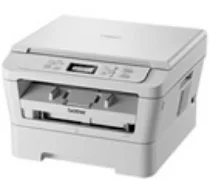
DCP-7055W software at a glance
Software packages19
SystemsWindows 3 · macOS 16
Package typesFirst-time setup 1 · Scanning 10 · Printing 8
32/64-bit versionsx86 2 · x64 1
Choose a download for Brother DCP-7055W
The official link opens Brother UK in English. Its current OS selector lists Windows, Linux and mobile. The older Mac entries in this archive do not establish current Mac compatibility; check the official supported-OS information.
Archive unavailable — not an installer: checked 19 October 2026: the first Windows package is a 3,302-byte HTML page. Do not run it. Use the official package link below; the original archive address is retained for reference.
Archive inventory and compatibility
This page contains 19 archived entries: 3 windows, 16 mac. These counts describe stored records, not verified current OS support. Compare the version and architecture in the filename with the official package description.
Choose your download route
Download opens our collected copy through the Wasabi gateway. Official site opens the manufacturer's model support page, where you can select an OS and review package notes. An archived copy is not claimed to be the latest release.
Brother UK: Brother DCP-7055W official support
Install and check the result
- Confirm the model label, operating-system version and architecture.
- Read the selected package instructions before connecting USB or configuring the network. Install optional tools only when you need their function.
- Print a test page. If scanning is required, test it separately and consult the official scan-component instructions if it fails.
Review scope: archive labels and official model pages checked on October 18, 2026. No driver installation, hardware test or security certification was performed.
01 Download the DCP-7055W driver
Two ways to download
Official Brother download ↗
Download a package directly from the list below, or get the newest version from Brother's official support site. The official link opens the DCP-7055W page; select your operating system there.
Download a package
Pick the full package for a first-time setup, or only the printer or scanner driver if the printer is already connected. Each Download button creates a one-time link to the file.
Scanning
Printer Driver and Scanner Driver for Windows 32 bit.EXE
Scanning
Printer Driver and Scanner Driver for Windows 64 bit.EXE
Printing
Printer Driver for Mac 10.15.dmg
Printing
Printer Driver for Mac 10.14.dmg
Printing
Printer Driver for Mac 10.13 and 10.12.dmg
Printing
Printer Driver for Mac 10.11.dmg
Printing
Printer Driver for Mac 10.10.dmg
Printing
Printer Driver for Mac 10.9.dmg
Printing
Printer Driver for Mac 10.6 to 10.8.dmg
Printing
Printer Driver for Mac 10.5.dmg
Scanning
Scanner Driver for Mac 10.15.dmg
Scanning
Scanner Driver for Mac 10.14.dmg
Scanning
Scanner Driver for Mac 10.13.dmg
Scanning
Scanner Driver for Mac 10.12.dmg
Scanning
Scanner Driver for Mac 10.8 to 10.11.dmg
Scanning
Scanner Driver for Mac 10.7 to 10.10.dmg
Scanning
Scanner Driver for Mac 10.6.dmg
Scanning
Scanner Driver for Mac 10.5.dmg
02 Install and test the DCP-7055W
Check the exact model name
Read the full model name on the printer label. It should match DCP-7055W exactly; printers with similar names can need different software.
Download the package for your system
On Brother's support site, choose your operating system version. Pick the full software package for a first-time setup, or just the printer driver if the printer already works with another computer.
Run the installer and connect the printer
Check the connection methods supported by your exact printer in the manufacturer documentation. Follow the installer prompts for that connection; if using USB, connect the cable when prompted.
Check that it worked
Print a test page from your system printer settings. To check scanning, open the scanner software and run a preview scan; printing and scanning are installed separately.
03 Troubleshooting
The installer cannot find the printer
Check the connection supported by your model. For USB, try another port and cable. If the printer supports a network connection, check its network connection and confirm the computer is on the same network, then run the installer again.
The printer is installed but shows as offline
Turn the printer off and on, check its supported connection, then remove and re-add it in your system printer settings. For a network-connected model, check whether the printer address has changed.
My operating system is not in the list
Check Brother's support site for your exact system version. Newer versions of Windows and macOS often include a built-in driver for older printers, so try adding the printer in system settings first.
Printing works but scanning does not
Scanning needs its own scanner driver or scan app. Install the scanner package for your system, then select this printer inside the scan software.
04 Sources
Package downloads come from PrinterDriversHub's driver archive; the official links go to Brother's website. PrinterDriversHub is independent and not affiliated with Brother.