
First-time setup
Canon / Drivers & setup
Canon MAXIFY GX5020 driver
The Canon MAXIFY GX5020 is a print-only model. It has no scanner hardware, so scanner software from a similar MAXIFY model does not belong on this page.
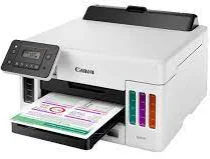
Model and software map
Device rolePrinting only
Connection pathsUSB, Wi-Fi or wired Ethernet
Software splitMaster Setup and printer driver are core paths; creative and maintenance tools are optional
Preserved inventory17 entries: 9 Windows, 5 macOS, 3 Linux; 2 setup/full-package, 4 print, 11 utility/other.
01 Download the MAXIFY GX5020 driver
Two ways to download
Official Canon download ↗
Download a package directly from the list below, or get the newest version from Canon's official support site. The official link opens the MAXIFY GX5020 page; select your operating system there.
Start with the job you need. Master Setup is the guided connection path; the printer driver is the printing component. Photo, layout, poster and toolbox records are optional utilities.
Download a package
Pick the full package for a first-time setup, or only the printer or scanner driver if the printer is already connected. Each Download button creates a one-time link to the file.
Printing
Printer Driver for Windows 7 8.1 10 and 11.exe
Optional tool
Easy-PhotoPrint Editor for Windows 7 8.1 10 and 11.exe
Optional tool
IJ Printer Assistant Tool for Windows 7 8.1 10 and 11.exe
Optional tool
Wi-Fi Connection Assistant for Windows 7 8 8.1 10 and 11.exe
Optional tool
Easy-Layout Editor for Windows 7 8.1 10 and 11.exe
Optional tool
PosterArtist Updater for Windows 7 8.1 10 and 11.exe
Optional tool
PosterArtist Lite for Windows 7 8.1 10 and 11.exe
Optional tool
Quick Utility Toolbox for Windows 7 8.1 10 and 11.exe
First-time setup
Master Setup for MAC OS X 13 12 11 and 10.13 to 10.15.dmg
Optional tool
Easy-PhotoPrint Editor for MAC OS X 13 12 11 and 10.13 to 10.15.dmg
Optional tool
Wi-Fi Connection Assistant for MAC OS X 13 12 11 and 10.10 to 10.15.dmg
Optional tool
Inkjet Smart Connect for MAC OS X 13 12 11 10.14 and 10.15.dmg
Optional tool
Quick Utility Toolbox for MAC OS X 13 12 11 and 10.12 to 10.15.dmg
Printing
IJ Printer Driver for Linux – debian Packagearchive
Printing
IJ Printer Driver for Linux – rpm Packagearchive
Printing
IJ Printer Driver for Linux – Source file
02 Install and verify
Step 1
Confirm GX5020 and the current OS on Canon’s selector.
Step 2
Use Master Setup for a guided new connection or the printer driver when the connection already exists.
Step 3
Print a system test page and confirm the queue names the GX5020.
Your success check
There is no scan check for this print-only model; software cannot add scanner hardware.
03 Sources and review scope
Official model/support material and this page’s preserved file inventory were reviewed on 2026-09-20. No package was executed and no printer was hardware-tested. Historical filenames do not prove current OS compatibility.
Current manufacturer guidance for Canon MAXIFY GX5020
Canon provides a setup entry specifically for GX5020. Canon’s US inkjet comparison lists GX5020 as a wireless print-only model, so a scanning package for another MAXIFY model is not a reason to expect scanner hardware here.
Choose the appropriate setup route
Start with the GX5020 model setup guide and choose software for printing. Use the guide for the connection you actually intend to set up.
Source check: 4 October 2026. Scope: Canon US model setup guide. Manufacturer documentation and package-purpose guidance checked.