
First-time setup
HP / Drivers & setup
HP LaserJet Pro MFP M127fn Driver
Get the HP software for the LaserJet Pro MFP M127fn from HP's official support site, see which package to pick for Windows and macOS, and finish with a test print.
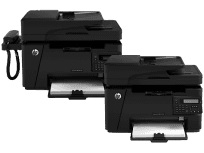
LaserJet Pro MFP M127fn software at a glance
Software packages7
SystemsWindows 4 · macOS 3
Package typesFirst-time setup 1 · Printing 2 · Fax 1 · Optional tool 2 · Scanning 1
01 Download the LaserJet Pro MFP M127fn driver
Two ways to download
Official HP download ↗
Download a package directly from the list below, or get the newest version from HP's official support site. The official link opens the LaserJet Pro MFP M127fn page; select your operating system there.
Download a package
Pick the full package for a first-time setup, or only the printer or scanner driver if the printer is already connected. Each Download button creates a one-time link to the file.
Printing
PCLm Printer Driver for windows.exe, Windows XP 32-bit
Printing
PCLm Driver Only (no Installer) for windows.exe, Windows XP 32-bit
Fax
Universal Fax Driver for windows XP Vista 7 8 8.1.zip , Windows XP 32-bit
Optional tool
HP Easy Start for Mac OS X 10.9 to 10.15 and 11.x.zip
Optional tool
Full Software Solution for Mac OS X 10.6 to 10.11.dmg
Scanning
HP Easy Scan for Mac OS X 10.11.pkg
02 Install and test the LaserJet Pro MFP M127fn
Check the exact model name
Read the full model name on the printer label. It should match LaserJet Pro MFP M127fn exactly; printers with similar names can need different software.
Download the package for your system
On HP's support site, choose your operating system version. Pick the full software package for a first-time setup, or just the printer driver if the printer already works with another computer.
Run the installer and connect the printer
Check the connection methods supported by your exact printer in the manufacturer documentation. Follow the installer prompts for that connection; if using USB, connect the cable when prompted.
Check that it worked
Print a test page from your system printer settings. To check scanning, open the scanner software and run a preview scan; printing and scanning are installed separately.
03 Troubleshooting
The installer cannot find the printer
Check the connection supported by your model. For USB, try another port and cable. If the printer supports a network connection, check its network connection and confirm the computer is on the same network, then run the installer again.
The printer is installed but shows as offline
Turn the printer off and on, check its supported connection, then remove and re-add it in your system printer settings. For a network-connected model, check whether the printer address has changed.
My operating system is not in the list
Check HP's support site for your exact system version. Newer versions of Windows and macOS often include a built-in driver for older printers, so try adding the printer in system settings first.
Printing works but scanning does not
Scanning needs its own scanner driver or scan app. Install the scanner package for your system, then select this printer inside the scan software.
04 Sources
Package downloads come from PrinterDriversHub's driver archive; the official links go to HP's website. PrinterDriversHub is independent and not affiliated with HP.