
First-time setup
HP / Drivers & setup
HP Smart Tank 7605 Driver
Get the HP software for the Smart Tank 7605 from HP's official support site, see which package to pick for Windows, and finish with a test print.
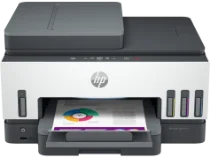
Smart Tank 7605 software at a glance
Software packages5
SystemsWindows 5
Package typesFirst-time setup 2 · Scanning 3
01 Download the Smart Tank 7605 driver
Two ways to download
Official HP download ↗
Download a package directly from the list below, or get the newest version from HP's official support site. The official link opens the Smart Tank 7605 page; select your operating system there.
Download a package
Pick the full package for a first-time setup, or only the printer or scanner driver if the printer is already connected. Each Download button creates a one-time link to the file.
Scanning
Universal Scan – Full Feature Software and Driver for Windows 11 10 8.1 7 32-bit and 64-bit.exe
Scanning
Universal Scan – Basic Feature Software and Driver for Windows 10 8.1 7 32-bit.exe
Scanning
Universal Scan – Basic Feature Software and Driver for Windows 11 10 8.1 7 64-bit.exe
First-time setup
Easy Start Printer Setup Software for Windows 11 10 7 32-bit and 64-bit.exe
02 Install and test the Smart Tank 7605
Check the exact model name
Read the full model name on the printer label. It should match Smart Tank 7605 exactly; printers with similar names can need different software.
Download the package for your system
On HP's support site, choose your operating system version. Pick the full software package for a first-time setup, or just the printer driver if the printer already works with another computer.
Run the installer and connect the printer
Follow the installer prompts for USB or Wi-Fi. For USB, connect the cable only when the installer asks. For Wi-Fi, keep the printer and computer on the same network.
Check that it worked
Print a test page from your system printer settings. To check scanning, open the scanner software and run a preview scan; printing and scanning are installed separately.
03 Troubleshooting
The installer cannot find the printer
Check the connection first. For USB, try another port and cable. For Wi-Fi, make sure the printer shows a network connection on its panel and that your computer is on the same network, then run the installer again.
The printer is installed but shows as offline
Turn the printer off and on, then remove and re-add it in your system printer settings. On Wi-Fi, a changed router or IP address is a common cause.
My operating system is not in the list
Check HP's support site for your exact system version. Newer versions of Windows and macOS often include a built-in driver for older printers, so try adding the printer in system settings first.
Printing works but scanning does not
Scanning needs its own scanner driver or scan app. Install the scanner package for your system, then select this printer inside the scan software.
04 Sources
Package downloads come from PrinterDriversHub's driver archive; the official links go to HP's website. PrinterDriversHub is independent and not affiliated with HP.